
UGC NET December 2026 Form: Live Photo Not Working? Try These Fixes Before Submitting
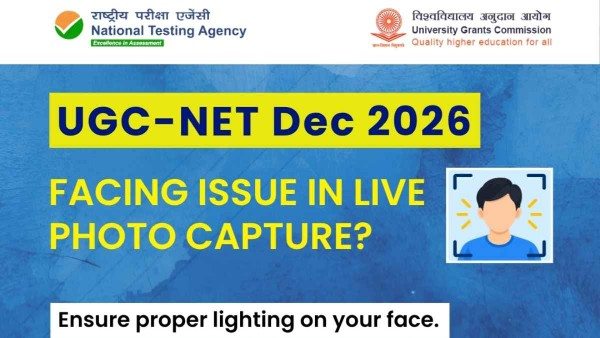
New Delhi: A minor technical glitch can often lead to major problems while dealing with an important application. Candidates may face problems while capturing their live photographs during online registration for the UGC-NET December 2026 examination. To resolve the problems of candidates, the instructions shared in the official website state that candidates should check whether the background is appropriate and the lighting is correct and if the camera is framed properly before trying to capture the photograph again.
Candidates should also switch browsers if clearing the browser cache does not solve the problem and use incognito mode, if available. The instructions share a series of troubleshooting steps to assist candidates in overcoming the problem.
|
Key Details |
Information |
|
Examination |
UGC-NET December 2026 |
|
Conducting authority |
National Testing Agency (NTA) |
|
Application issue |
Live photograph capture |
|
First troubleshooting step |
Improve facial lighting |
|
Background requirement |
Clear and well-lit |
|
Camera framing |
Only one face visible |
|
Browser troubleshooting |
Clear cache, switch browser or use incognito mode |
|
Official website |
Why is Live Photo Capture necessary for UGC-NET December 2026?
Live photograph capture is a part of the online application process. If a candidate is not able to resolve the camera or browser issues, they should not continue with the application process. The government has taken this step to prevent the need for candidates to upload photos that do not meet the required standards (for example, if there is more than one face appearing in the picture, if the face is not properly lit or if the background is not appropriate).
The instructions on the official website should be followed and the prescribed process to capture the photograph should be adhered to. Candidates should not attempt to substiture an unrelated image.
How to Fix UGC-NET Live Photo Capture Issues
Candidates may try out the following troubleshooting steps if their live photograph is not getting captured.
1. Improve the lighting of your face
Ensure that you are seated in a place which is sufficiently lit and your face is not hidden in the shadows. Avoid placing a very strong light source behind you as that may result in dark face. Even light may help the camera to identify the facial features better.
2. Keep Background clear
Avoid backgrounds with distracting elements and objects or people. Check the camera preview and ensure the camera is focused on you. A clear background may also ensure the camera is focused on the applicant.
3. Ensure only one face is visible
The shared guidance explicitly states that only one face should be in the frame. Check the camera preview and ensure no one is in the background or beside you. Position yourself in front of the camera as per the framing instructions available on the portal.
4. Clear browser cache
If the camera is still not working correctly, try some browser troubleshooting. Deleting the browser cache, and re-opening the application website may help. Applicants should ensure they can access their application and login credentials before clearing their browser data. Deleting data may result in losing information unnecessarily.
5. Try using a different supported browser, or use Incognito mode
If the issue persists, try opening the portal in another supported browser. You can also try using your browser’s incognito or private browsing mode.
What Should Candidates Do If the Problem Continues?
Once you have signed in, if you see the camera permission prompt, please allow access to the camera for the application website. Candidates should check their browser settings if camera access has been blocked. uIf live photo capture is still not working, candidates should look for the latest helpdesk and instructions published on the UGC NET official site, and follow instructions given there to resolve their query. Meanwhile, they should save the error message shown, if any.
Candidates should not put off resolving technical issues until the last minute. Candidates should also use the official website only and not share their application passwords/OTPs or other personal information with unofficial persons. The tips given here will help resolve common problems related to browsers and cameras, but may not help resolve all the issues. If the portal continues to behave erratically, candidates should follow the instruction issued by the National Testing Agency.
UGC-NET December 2026 Application: Official Updates
The official UGC-NET website is the only authorized source for application notification, examination information and advisories to candidates. Regular follow up by candidates is advised for updates on timelines for submission of applications, any new guidelines and information on capture of live photographs.
The archive contains the advisories to candidates issued by the NTA for UGC-NET, including advisories for the June 2026 examination and guidance on live photographs. However, candidates should not assume that an advisory relevant to an earlier cycle, would apply to the December 2026 UGC-NET exam.
Conclusion
Difficulty in capturing live photographs can affect the UGC-NET December 2026 application process. However, candidates can verify the camera is set up correctly, try taking the photos in front of a plain background, ensure only one face is captured in the photo and try some basic troubleshooting steps for the browser they are using. For more advanced issues and troubleshooting, candidates can refer to the latest support information available on the official NTA portal.
Frequently Asked Questions
1. What could be the reasons for my UGC-NET December 2026 live photo not capturing?
Possible reasons could be poor lighting conditions, cluttered background, presence of more than one face in the photo frame, or browser related issues. Check these, and try capturing the photo again.
2. How can I capture a better live photo?
Make sure the background is clear, the lighting is even, and only your face is in the photo frame.
3. Is it necessary to clear my browser cache, if camera function is not working?
Yes, clearing the browser cache is a suggested troubleshooting step in the shared guidance. After doing this, reopen the application, and try the photo capture process again.
4. Am I allowed to use other browsers for the UGC-NET application?
Yes, you can use other supported browsers as well. If the problem persists, try using the supported browsers in the Incognito mode as well, and make sure camera permissions are enabled for the official website.
5. Am I allowed to upload a previous photograph, instead capturing a live photograph?
Follow the on-screen instructions. Do not substitute a previous photograph if it is not permitted.
6. Where can I get the latest notifications for UGC-NET December 2026?
Go to the official website, ugcnet.nta.nic.in for recent notifications and instructions.
Click Here for More Latest News