
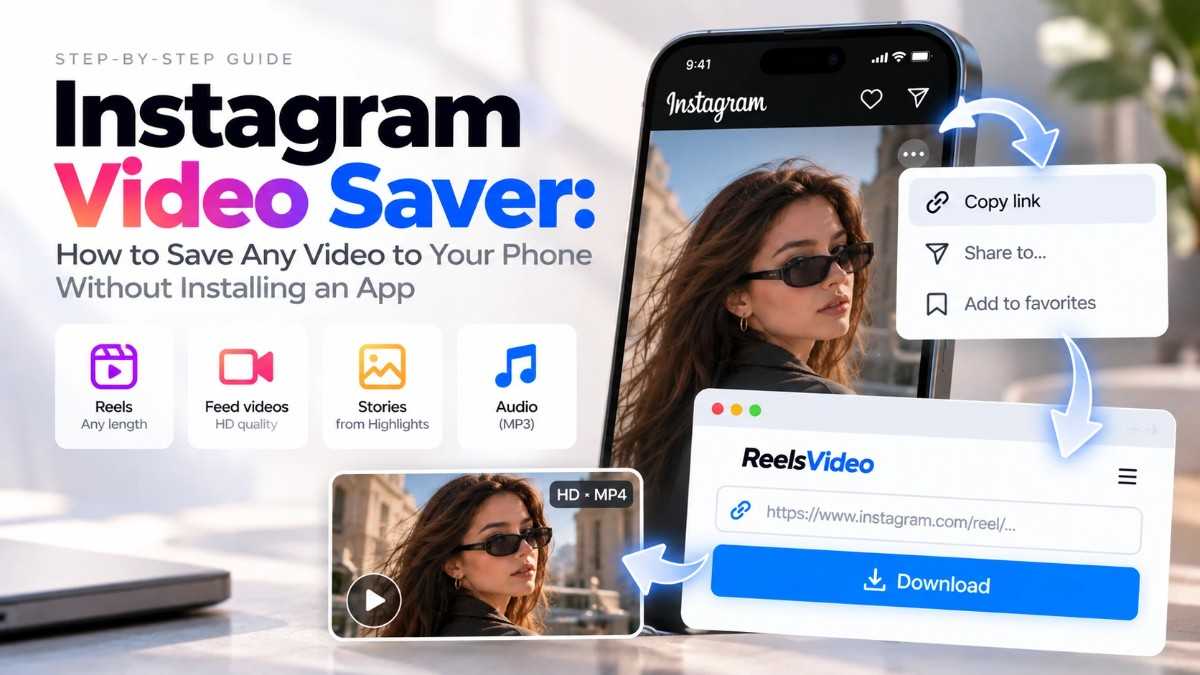
Instagram's built-in "Save" button bookmarks a post inside the app — it doesn't put anything in your phone's camera roll or storage. To actually save an Instagram video to your phone, you need a different approach. The easiest one that requires no app install is an instagram video saver that works in your existing browser. This guide covers every method — what each one actually does, and the fastest path to getting the file onto your device.
What 'Save' on Instagram Actually Does (and Doesn't Do)
Tapping the bookmark icon on an Instagram post saves it to your Collections inside the app. You can find it under your profile → Saved. What it doesn't do: save any file to your phone. The video stays on Instagram's servers, and if the creator deletes the post or their account, your saved bookmark disappears too. For a real copy — a file on your device — you need to download it.
Methods Compared
|
Method |
Installs needed? |
Result |
|
Instagram native save |
No |
Bookmarks inside app only — not saved to phone storage |
|
Screen recording |
No |
Captures UI elements, not the clean original file |
|
Third-party apps |
Yes — app install required |
Varies; many ask for permissions or show ads |
|
ReelsVideo (browser) |
No |
Original MP4 saved to phone storage, no watermark |
How to Save an Instagram Video to Your Phone — No App Needed
This works on Android and iPhone using only your existing browser and reelsvideo.io:
- Open Instagram and find the video, Reel, or IGTV you want to save.
- Tap the three dots (••• on iPhone, ⋮ on Android) on the post.
- Tap Copy link.
- Open reelsvideo.io in your browser (Chrome, Safari, or any browser).
- Paste the link into the input field and tap Download.
- The original MP4 file saves directly to your phone's storage.
That's the whole process. No account, no install, under 30 seconds.
On Android
Chrome downloads the file to your Downloads folder. It appears in your Gallery automatically on most Android devices. If it doesn't show up in Gallery, open your file manager and look inside the Download folder — the file is there.
One thing to avoid: don't use Instagram's in-app browser (the one that opens when you tap a link inside Instagram). Open Chrome separately for best results — the in-app browser can block file downloads.
On iPhone
Safari sometimes streams the video instead of saving it. If that happens:
- After tapping Download on reelsvideo.io, if the video plays in Safari rather than downloading — tap and hold the video thumbnail.
- Choose Download Linked File from the menu.
- Find the file in Files → Downloads.
- To move it to your Photos app: tap the file → Share → Save Video.
Tip: Chrome on iPhone usually downloads directly without the extra step. If you use Chrome on your iPhone, the process is identical to Android — paste, tap Download, done.
What Gets Saved
The file you get is the original MP4 as Instagram stores it — no re-encoding, no watermark, no additional compression. Quality is whatever the creator originally uploaded: typically HD 720p or Full HD 1080p for Reels and feed videos. Photos from carousels save as JPG. Audio can also be extracted as MP3 from any video or Reel.
What You Can Save
- Reels — any public Reel, any length
- Feed videos — standard video posts from any public account
- IGTV — long-form video content
- Stories in Highlights — Stories saved to a public profile
- Photos and carousels — saved as JPG
- Audio — extracted as MP3 from any video or Reel
Private account content is not accessible — those files aren't publicly served, so no external tool can reach them.
Frequently Asked Questions
Does this work for saving someone else's Reels, not just my own?
Yes. The process is the same for any public post — your own or anyone else's. Copy the link, paste it into reelsvideo.io, download.
Will the creator know I saved their video?
No. Instagram doesn't notify creators about downloads made through external tools.
Is it free?
Yes — no subscription, no account, no download limits. The site is ad-supported.
What if the video won't download on my iPhone?
If Safari plays the video instead of saving it, use the tap-and-hold method described above, or switch to Chrome on iPhone — Chrome downloads the file directly to your device without extra steps.
Save the File, Not Just the Bookmark
Instagram's in-app save only keeps a link to the post — the actual video stays on their servers. To get the file onto your phone, use an instagram video saver that works in your browser: copy the post link, paste it into reelsvideo.io, tap Download. The original MP4 is on your device in under 30 seconds — no app to install, no account to create, completely free.
Click Here for More Science & Technology