
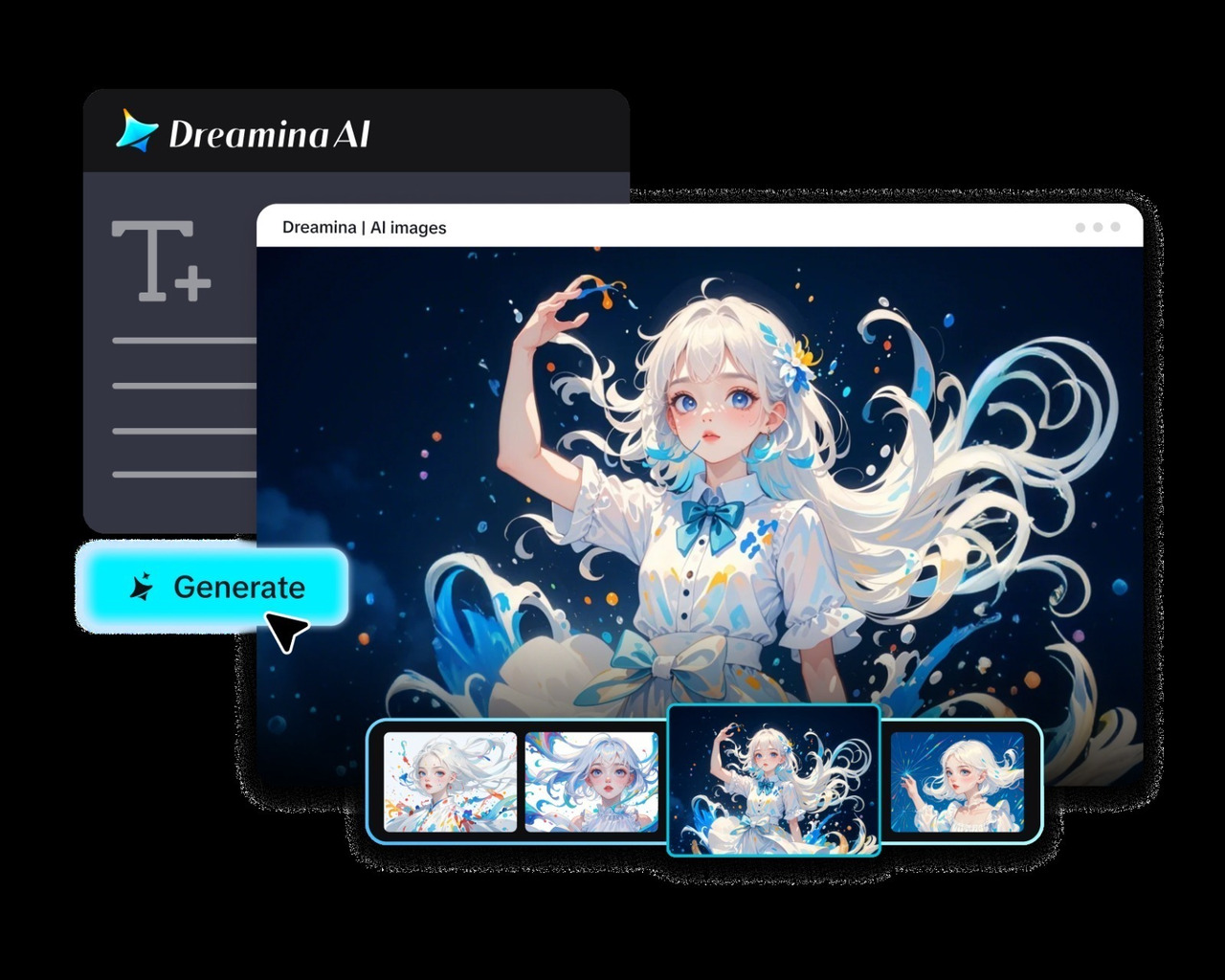
The album art is the first visual impression that listeners have of music before hitting play. Colors, lighting, textures, and symbols can convey emotions that melodies and lyrics convey in other ways. Dreamina AI assists artists in transforming musical concepts into fresh visual concepts, rather than beginning with pre-drawn pictures. Detailed prompts, reference images, and editing tools allow you to explore artwork that reflects your sound. It's not about picking a pretty picture; it's about building a visual brand. Artwork and music can convey a similar atmosphere, and listeners will be able to relate to the album's identity more easily.
Decode the Sound Before Writing an Image Prompt
Start by examining the emotions, themes, and sonic qualities that define your music. A nostalgic acoustic album might evoke faded photographs, warm sunlight, and weathered paper. Meanwhile, distorted guitars and heavy percussion might inspire fragmented shapes, harsh lighting, and rough metallic textures. Consider the genre, but avoid relying entirely on familiar stereotypes. Identify recurring lyrical images, meaningful objects, or narrative themes that could become visual metaphors. Determine whether the artwork represents one song, an entire album, or your broader artist identity. This preparation makes an AI Image generator more useful because descriptive prompts communicate artistic intent more clearly. Decide whether listeners should recognize the subject immediately or discover its meaning gradually.
.jpg)
Step 2: Choose a model and shape the cover

Build a Visual Language That Reflects Your Sound
Convert musical properties to purposeful visual decisions to create a unified atmosphere. Subdued blues and barren landscapes can signal isolation; deep reds can signal urgency or intensity. Percussion, basslines, or repetitive melodic phrases can be repeated through rephrasing of shapes and rhythms. Photographs can be grainy, lights can be blurred, metal surfaces can be used, and layers of atmosphere can be used to represent different sonic textures. Select symbols that support the message of the album rather than adding 'goodies for goodie's sake'. The window could be used to symbolize distance, and the flowers could symbolize renewal. Lights, contrast, composition, and control the visual intensity of music: intimate, explosive, surreal, restrained. Have a strong focus that can be identified when the cover is shown as a small thumbnail on platforms.
Steps to Create Album Covers That Match Your Sound Using an AI Image Generator
Step 1: Log in and describe your cover concept
- First, sign up or log in to Dreamina to begin shaping your new album artwork.
- Next, find the "Create" tab in the left menu and click the "AI Image" option.
- Later, type a detailed text prompt about the mood, genre, and style of your sound. Add information on image elements, theme, and concept so the cover reflects your music honestly.
Step 2: Choose a model and shape the cover
- Check the options at the bottom of the dialogue box and choose an image model.
- Pick Seedream, GPT Image, or Nano Banana, whichever matches the mood of your music best.
- Provide a reference image to Dreamina to help your cover look more precise and natural.
- Set a custom aspect ratio and a resolution from the "Aspect ratio" and "Resolution" tabs.
- Use the "Images to generate" tab to decide how many covers you want to see. Then, adjust the "Dimensions" tab to set custom dimensions for streaming or vinyl print formats.
- If you want a title on the artwork, use the "Draw text on image" tab.
- Finally, click the "Generate" tab and let Dreamina begin creating your album cover for you.
Step 3: Polish the artwork and download
- Dreamina presents the required number of drafts, so compare each cover against your overall sound. If a draft misses your vision, try "Edit prompt" or "Regenerate" to refine generated results.
- You can upscale the generated image with "Creative upscale" for crisp detail on large screens.
- Use "Retouch" to correct, clean up, or enhance the details of the selected cover image.
- Pick "Remove" to erase anything distracting from the cover, like stray shapes or small smudges. Use the "Expand" tab to extend the image and fit wider banners and promo posters.
- You can continue creating with your generated image by opening the "Generate video" tab to make a video.
- Dreamina gives you complete freedom to edit the artwork until the cover feels exactly right.
- Finally, click the "Download" tab located in the top right corner of the Dreamina interface. This saves the image file on your local device for uploading to major streaming platforms.
Explore Different Album-Art Directions With Dreamina AI
One musical idea can create realistic images, abstract compositions, surreal images, or movie scenes. Models like Seedream, GPT Image, and Nano Banana are integrated by Dreamina AI, offering diverse creative applications. It has a creative agent that can produce up to 40 visual directions from a single instruction, if they exist. See how these differences affect the character of the album and choose the best interpretation. Now change one thing at a time: lighting, symbolism, color, and composition, to understand the effect these have on results. Original reference imagery can be used to define a unique baseline for subsequent releases. Great album covers convey an idea in artistic means, not just random ones like on most other music.
Compose Artwork That Works Across Music Platforms
Even if album artwork is only a small square thumbnail, it needs to convey its idea. Clear positioning of the main subject and good contrast between the main elements and the background. A balanced composition helps to avoid unnecessary clutter, and negative space allows for space for titles and artists' names. Review all lettering for spelling errors and/or inconsistent characters, as generated lettering text can contain errors. Typography and layout programs can offer more reliable text positioning. Confirm your distributor's current requirements for dimensions, accepted formats, image quality, and content restrictions before delivery. Looking at the cover in different sizes will show issues that may be hidden in larger sizes.
Protect Artistic Identity and Avoid Generic AI Cover Art
Broad prompts tend to yield more predictable imagery that can be difficult to differentiate from album to album. Find specific metaphors, strange visual combinations, and details that relate to the music. Don't use any copy of existing covers or unauthorized logos; use original references or materials with proper permissions. There are separate copyright or trademark issues with recognizable people, copyrighted characters, and trademarked elements. Before commercial release, check Dreamina AI's applicable terms and model-specific conditions. Look at the final image for any unwanted artifacts, accidental text, misleading symbols, and inconsistent details. Check that the artwork is true to the mood that was planned and that it is not an inadvertent copy of another artist's easily recognized identity.
Conclusion
Great album art is a kind of art that converts musical feelings into a thoughtful mix of color, texture, symbolism, and composition. Dreamina AI can convert ideas from text or images into various creative directions. The iterative refinement process enables artists to create better concepts rather than just taking the first output from the process. Thumbnail readability, original art direction, accurate typography, and platform requirements are important factors to consider. In conclusion, album art is more than just a cover for music; it creates a visual atmosphere that listeners can connect to the music.
Click Here for More Science & Technology